Welcome to Zenovay! This quick start guide will have you tracking visitors and viewing analytics in just a few minutes.
What You'll Need
Before you begin, make sure you have:
- A Zenovay account (free tier works great to start)
- Access to your website's HTML or a supported CMS (WordPress, Shopify, etc.)
- About 5 minutes of your time
Step 1: Create Your Account
If you haven't already, head to app.zenovay.com and create your free account. You can sign up with:
- Email and password
- Google account
- GitHub account
Free accounts include 10,000 events per month, 1 year of data retention, and 2 team members. Perfect for getting started!
Step 2: Add Your Website
Once logged in, open Domains from the sidebar and click Add domain. Enter your website's domain (e.g., example.com) and continue.
Zenovay will generate a unique tracking code for your site.
Step 3: Install the Tracking Script
Copy the tracking script from your dashboard and add it to your website. The script looks like this:
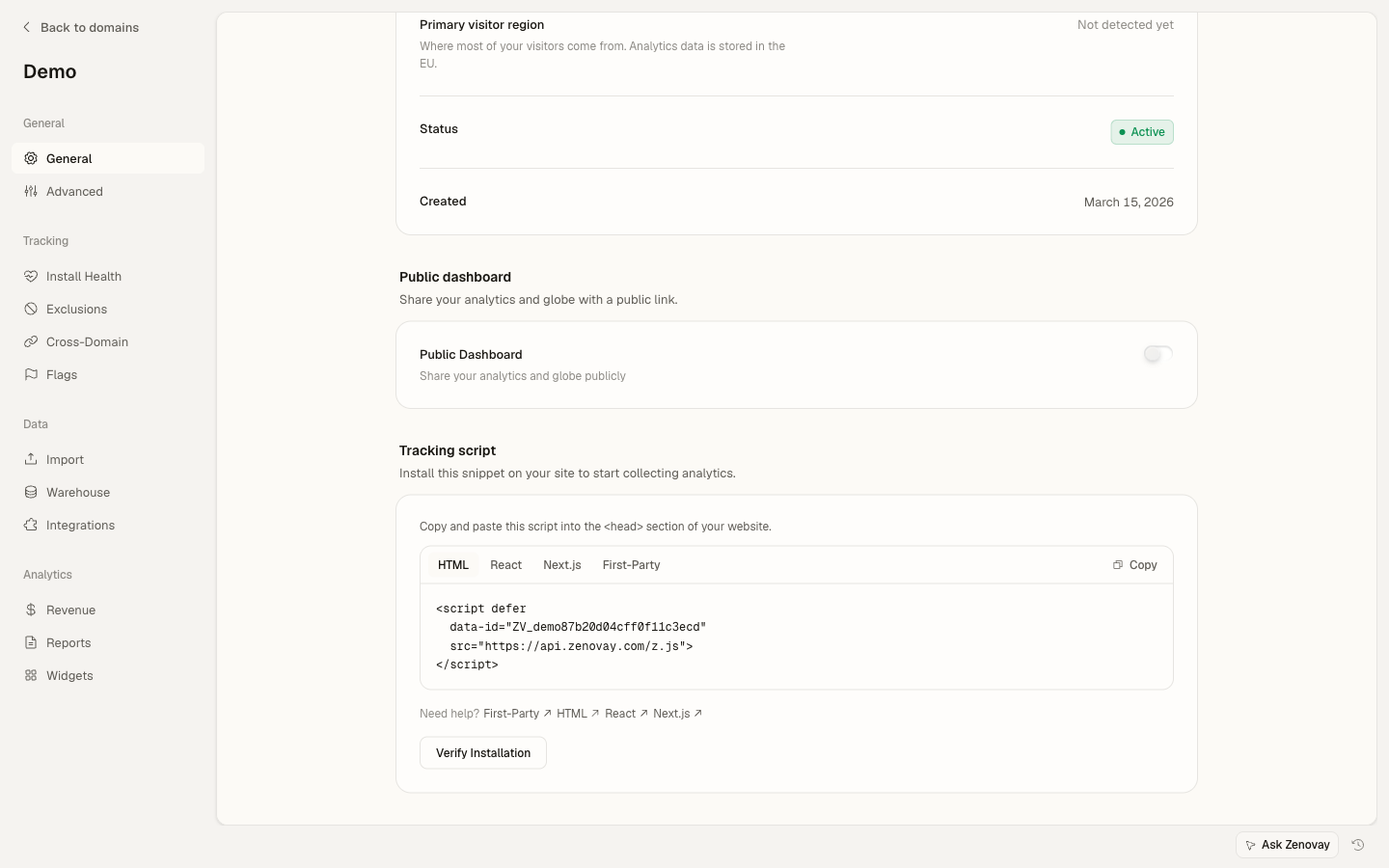
<script
  defer
  src="https://api.zenovay.com/z.js"
  data-tracking-code="YOUR_TRACKING_CODE"
></script>
Add this script to the <head> section of your website, just before the closing </head> tag.
Using a CMS?
If you're using WordPress, Shopify, or another CMS, check our integration guides for platform-specific instructions.
Step 4: Verify Installation
After adding the script:
- Visit your website in a new browser tab
- Open your website's dashboard in Zenovay (Domains → select your site)
- Go to the Live View tab to see your visit appear in real-time
If you see your visit in Live View, congratulations! Your tracking is working correctly.
Step 5: Explore Your Dashboard
Open your website's dashboard and explore the key tabs:
- Analytics: View visitor trends, traffic sources, and geographic data
- Live View: Watch visitors on your site in real-time
- Globe: Visualize your global traffic on an interactive 3D globe
- Sessions: Replay user sessions to understand behavior (Pro plan and up)
What's Next?
Now that you're up and running, here are some recommended next steps:
- Set up conversion goals to track important actions
- Invite team members to collaborate on analytics
- Configure privacy settings for compliance
- Explore the 3D Globe to visualize your traffic
Need Help?
If you run into any issues, check our Troubleshooting guide or reach out to our support team.
Related Articles
- Installing the Tracking Script - Detailed installation instructions
- Verifying Your Installation - Troubleshoot tracking issues
- Understanding Your Dashboard - Complete dashboard overview