This guide covers all the ways you can install Zenovay tracking on your website.
Finding Your Tracking Code
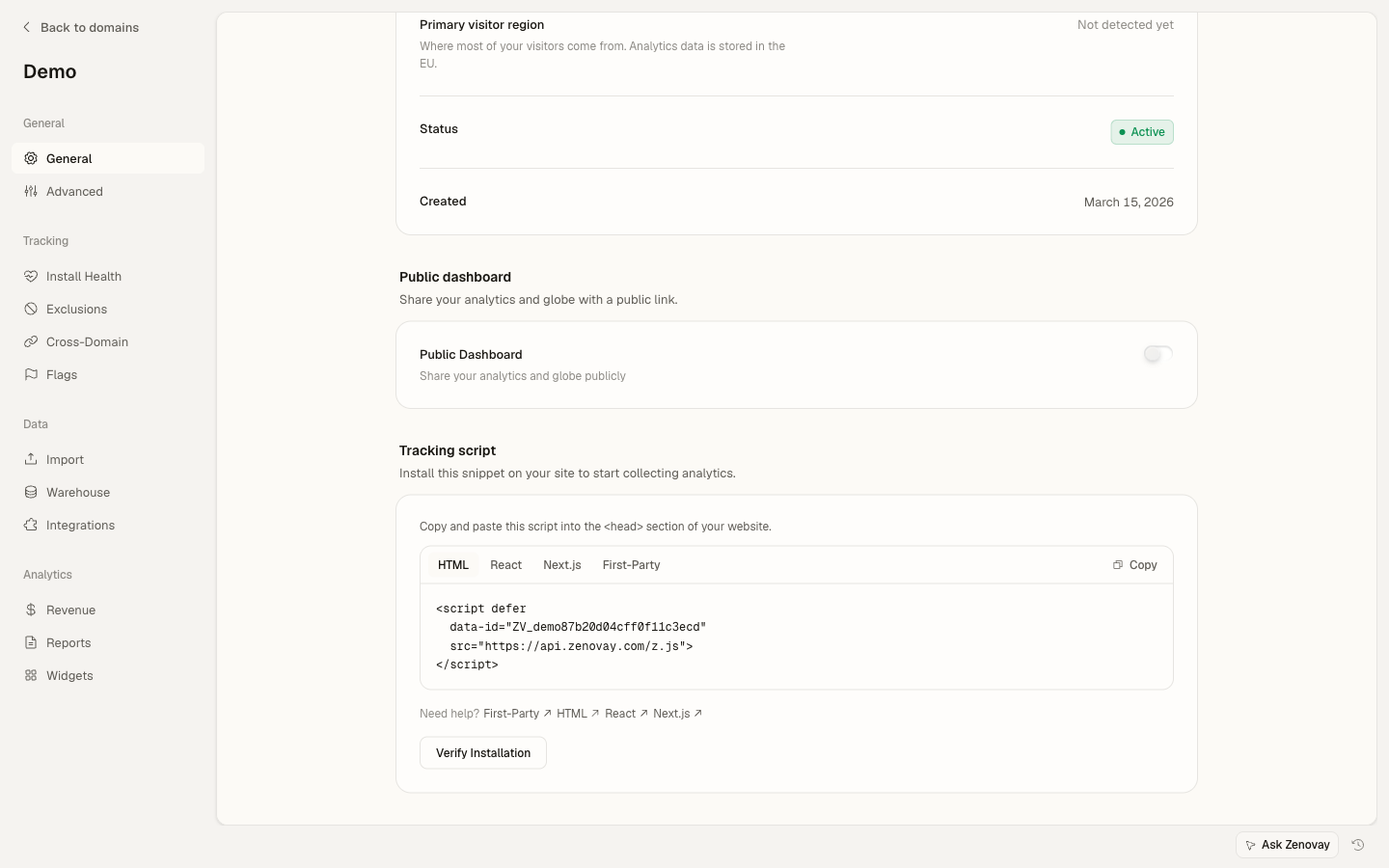
First, get your unique tracking code:
- Log in to your Zenovay dashboard
- Open Domains and select the site you want to track
- Open the website's settings and go to the General tab
- Copy the script from the Tracking Script section
Your tracking code is a unique 12-character identifier (for example aB3xYz9kLm2P). It is embedded in the script snippet you copy, so you usually do not need to handle it on its own.
Installation Methods
The simplest way to add tracking is with a script tag. Add this code to your website's <head> section:
<script
  defer
  src="https://api.zenovay.com/z.js"
  data-tracking-code="YOUR_TRACKING_CODE"
></script>
Replace YOUR_TRACKING_CODE with your actual tracking code from the dashboard.
For React or other SPA frameworks, add the same script tag to your index.html or root layout:
<script defer
  data-tracking-code="YOUR_TRACKING_CODE"
  src="https://api.zenovay.com/z.js"
></script>
Then use the global zenovay function in your components:
// Track custom events after the script loads
function handleSignup() {
  zenovay('track', 'signup_click', { plan: 'pro' });
}
For Next.js, add the script in your _app.tsx or layout.tsx:
import Script from 'next/script'

export default function RootLayout({ children }) {
  return (
    <html>
      <head>
        <Script
          defer
          src="https://api.zenovay.com/z.js"
          data-tracking-code="YOUR_TRACKING_CODE"
        />
      </head>
      <body>{children}</body>
    </html>
  )
}
If you build with a bundler, install the @zenovay/tracker npm package instead of adding a script tag. The wire-format is identical to the script-tag install.
npm install @zenovay/tracker
import { init, track } from '@zenovay/tracker';

init('YOUR_TRACKING_CODE');

// From any component or handler:
track('Signup clicked', { source: 'hero' });
Available now as @zenovay/tracker v0.1.0+. Both this method and the script-tag tabs above are fully supported, so pick whichever fits your stack.
Script Options
You can customize the tracking behavior with additional data attributes:
| Attribute | Description | Default |
|---|---|---|
data-tracking-code | Your unique tracking code (required) | - |
data-api-url | Custom API endpoint URL | https://api.zenovay.com |
data-debug | Enable debug mode in console | false |
data-ignore-dnt | Switch off the Do Not Track check and track anyway. Has no effect on GPC | false |
data-allow-localhost | Enable tracking on localhost | false |
data-heartbeat | Send periodic heartbeat pings | true |
data-track-outbound | Track outbound link clicks | false |
data-silent | Suppress all console output | false |
DNT (Do Not Track) and GPC (Global Privacy Control) are respected by default, and no attribute is needed to enable that.
GPC cannot be overridden. There is no attribute and no setting that makes the tracker record a visitor whose browser sends Global Privacy Control.
DNT can be. data-ignore-dnt="true" switches off the DNT check for that page. It is also applied automatically to every bundle served through the first-party proxy, so a script loaded from your own subdomain records DNT visitors even if you never set the attribute. Use the standard api.zenovay.com snippet if you want DNT honored.
Other privacy settings such as IP anonymization and cookieless mode are configured in Settings in the dashboard.
Example with Options
<script
  defer
  src="https://api.zenovay.com/z.js"
  data-tracking-code="YOUR_TRACKING_CODE"
  data-debug="true"
></script>
First-Party Tracking
Scale PlanFor ad-blocker resistant tracking, serve the script from your own domain. The custom-domain (CNAME) setup below requires a Scale or Enterprise plan:
Add CNAME Record
Add a CNAME DNS record pointing a subdomain (e.g.,
analytics.yourdomain.com) toproxy.zenovay.com.Update Script URL
Change the script source to use your subdomain:
<script defer src="https://analytics.yourdomain.com/z.js" data-tracking-code="YOUR_TRACKING_CODE" ></script>Wait for DNS Propagation
DNS changes can take up to 48 hours to propagate fully.
First-party tracking helps ensure your analytics work even when visitors use ad blockers or privacy extensions.
Verifying Installation
After adding the script:
- Open your website in a new browser tab
- Open browser DevTools (F12) and go to the Network tab
- Filter by "zenovay" or "tracker"
- You should see requests being made to the Zenovay API
Alternatively, open your website's dashboard and select the Live View tab to see your visit appear in real time.
Troubleshooting
Script Not Loading?
- Ensure the script is in the
<head>section - Check for JavaScript errors in the browser console
- Verify your tracking code is correct
- Make sure there are no Content Security Policy (CSP) issues
Next Steps
- Verify your installation to ensure everything works
- Track custom events for important user actions
- Set up goals to measure conversions