Understanding the difference between first-party and third-party tracking helps you choose the right approach for your website's analytics needs.
What is Third-Party Tracking?
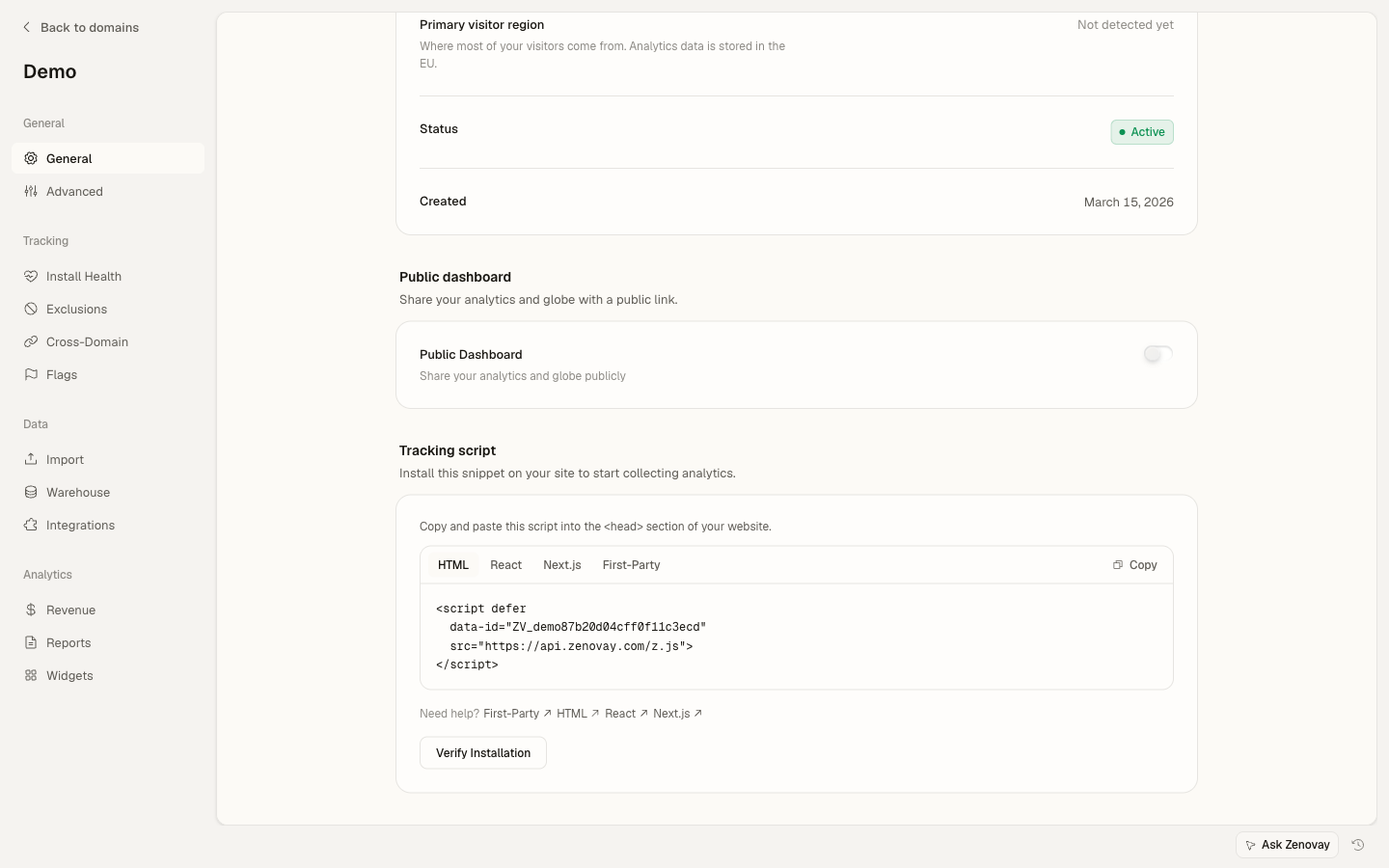
Third-party tracking is the default method when you install Zenovay. Your website sends data to our servers at api.zenovay.com.
<script
  defer
  src="https://api.zenovay.com/z.js"
  data-tracking-code="YOUR_TRACKING_CODE"
></script>
How It Works
- Visitor loads your page at
yoursite.com - Browser fetches tracker script from
api.zenovay.com - Tracking data is sent to
api.zenovay.com - Data appears in your Zenovay dashboard
Advantages
- Easy setup: Just copy and paste the script
- No DNS configuration: Works immediately
- Automatic updates: Always uses the latest tracker version
Limitations
- Ad blockers: Some block requests to analytics domains
- Privacy extensions: May prevent third-party requests
- Corporate firewalls: Some organizations block external analytics
What is First-Party Tracking?
Scale PlanFirst-party tracking serves the tracker, and receives tracking data, from a subdomain of your own site. Because the requests look like they come from your own domain, they survive ad blockers and browser tracking protection (Firefox ETP, Edge Tracking Prevention, and similar) that would otherwise block calls to a separate analytics host.
<script
  defer
  src="https://z.yoursite.com/script.js"
  data-tracking-code="YOUR_TRACKING_CODE"
></script>
How It Works
- Visitor loads your page at
yoursite.com - Browser fetches the tracker from
z.yoursite.com(a subdomain of your own site) - Tracking data is sent to
z.yoursite.com - Your subdomain transparently proxies requests to Zenovay
- Data appears in your Zenovay dashboard
Advantages
- Ad blocker resistant: Requests appear first-party
- Better accuracy: Fewer blocked requests
- Professional appearance: Uses your domain
- Resilient to tracking protection: Bypasses Firefox ETP, Edge Tracking Prevention, and similar
Considerations
- Requires a CNAME DNS record on your domain
- Takes time for DNS and SSL to propagate
- Available on the Scale and Enterprise plans
- First-party proxy events are metered separately from your monthly event allowance (you can see them under Settings → Usage in the First-Party Tracking card)
Setting Up First-Party Tracking
First-party tracking is configured per website. You need the Scale or Enterprise plan, and you must be a workspace owner or admin to add or verify a custom domain.
Choose Your Subdomain
Pick a subdomain on your own domain to serve analytics. We recommend
z.yoursite.com. Other common choices:z.yoursite.com(recommended)data.yoursite.comstats.yoursite.comt.yoursite.com
Avoid obvious names like "analytics", "tracking", or "zenovay", which some ad blockers target by keyword.
Add CNAME Record
Add a CNAME DNS record in your domain registrar pointing your chosen subdomain at Zenovay's proxy:
Type Name Value CNAME z proxy.zenovay.com Replace "z" with your chosen subdomain name.
Wait for DNS Propagation
DNS changes can take up to 48 hours to propagate globally. You can check progress using:
dig z.yoursite.comOr use online tools like dnschecker.org
Verify the Domain
Once the CNAME is in place, verify the domain so Zenovay can issue an SSL certificate for it. Verification is triggered from your website's configuration in the dashboard. SSL is provisioned automatically once the record resolves correctly, which can take a few minutes.
Update Your Script
Update your tracking script to load from your subdomain. The first-party snippet uses the
/script.jspath:<script defer src="https://z.yoursite.com/script.js" data-tracking-code="YOUR_TRACKING_CODE" ></script>
DNS Configuration by Provider
In every case below, the record is a CNAME pointing to proxy.zenovay.com. Replace z with whatever subdomain you chose.
Cloudflare
- Go to your domain's DNS settings
- Click Add Record
- Select CNAME type
- Enter subdomain name (e.g., "z")
- Enter target:
proxy.zenovay.com - Enable Proxy (orange cloud) for SSL
GoDaddy
- Log in to your GoDaddy account
- Go to My Products → DNS
- Click Add under Records
- Select CNAME
- Host:
z - Points to:
proxy.zenovay.com - TTL: 1 Hour
Namecheap
- Go to Domain List → Manage
- Click Advanced DNS
- Add New Record → CNAME Record
- Host:
z - Value:
proxy.zenovay.com
Route 53 (AWS)
- Go to Hosted zones → your domain
- Click Create record
- Record name:
z - Record type: CNAME
- Value:
proxy.zenovay.com
Verifying Your Setup
After DNS propagation, verify your first-party tracking:
Check DNS Resolution
nslookup z.yoursite.com
Should resolve to proxy.zenovay.com or a Zenovay IP address.
Check Script Loading
- Visit your website
- Open DevTools (F12) → Network tab
- Filter by your subdomain
- Verify
script.jsloads from your subdomain
Check Data Collection
- Visit your website
- Open your website's dashboard and check the Live View tab
- Your visit should appear within seconds
Troubleshooting
DNS Not Resolving
- Wait longer for propagation (up to 48 hours)
- Clear local DNS cache
- Try from a different network
SSL Certificate Errors
If using Cloudflare:
- Ensure the proxy (orange cloud) is enabled
- Check SSL mode is "Full" or "Full (Strict)"
Without Cloudflare:
- Zenovay provisions the SSL certificate automatically once the CNAME resolves
- Wait up to 24 hours for certificate provisioning
Tracking Not Working
- Verify DNS resolves correctly
- Check browser console for errors
- Ensure your tracking code is correct
- Try in incognito mode
Best Practices
Recommended Setup
Use a non-obvious subdomain name and enable first-party tracking for the most accurate analytics.
- Choose a generic subdomain: Avoid "analytics" or "tracking" as some blockers target these
- Test before deploying: Verify DNS works before updating production scripts
- Keep third-party as a fallback: Consider loading the standard third-party snippet if first-party isn't yet verified
- Monitor blocking rates: Compare data before/after to measure improvement
Comparing Accuracy
Switching from third-party to first-party tracking typically recovers visits that ad blockers and browser tracking protection would otherwise drop. The exact improvement depends on your audience: sites with privacy-conscious or technical visitors tend to see the biggest gains. Compare your numbers for a few days before and after the switch to measure the difference for your own traffic.
Do Not Track on a first-party setup
One privacy behaviour changes when you move to first-party tracking, and it is worth knowing before you switch.
Bundles served through the first-party proxy are delivered with the Do Not Track check already switched off. The proxy applies the same override as data-ignore-dnt="true", automatically, so a site serving the tracker from its own subdomain records visitors whose browser sends DNT. You do not opt into this and there is no attribute that puts DNT back.
Global Privacy Control is not affected. A GPC browser is still stopped before the tracker sends anything, on first-party and third-party setups alike, and that check cannot be overridden.
If honoring DNT matters for your site, keep the standard third-party snippet from api.zenovay.com. If you stay on first-party tracking, say so in your privacy policy. What you are obliged to do about DNT depends on your jurisdiction.