Invite colleagues to collaborate on your Zenovay analytics. Team members can view data, manage websites, and work together on insights.
Member Limits
| Plan | Max Members |
|---|---|
| Free | 2 |
| Pro | 5 |
| Scale | 25 |
| Enterprise | Unlimited |
Inviting Members
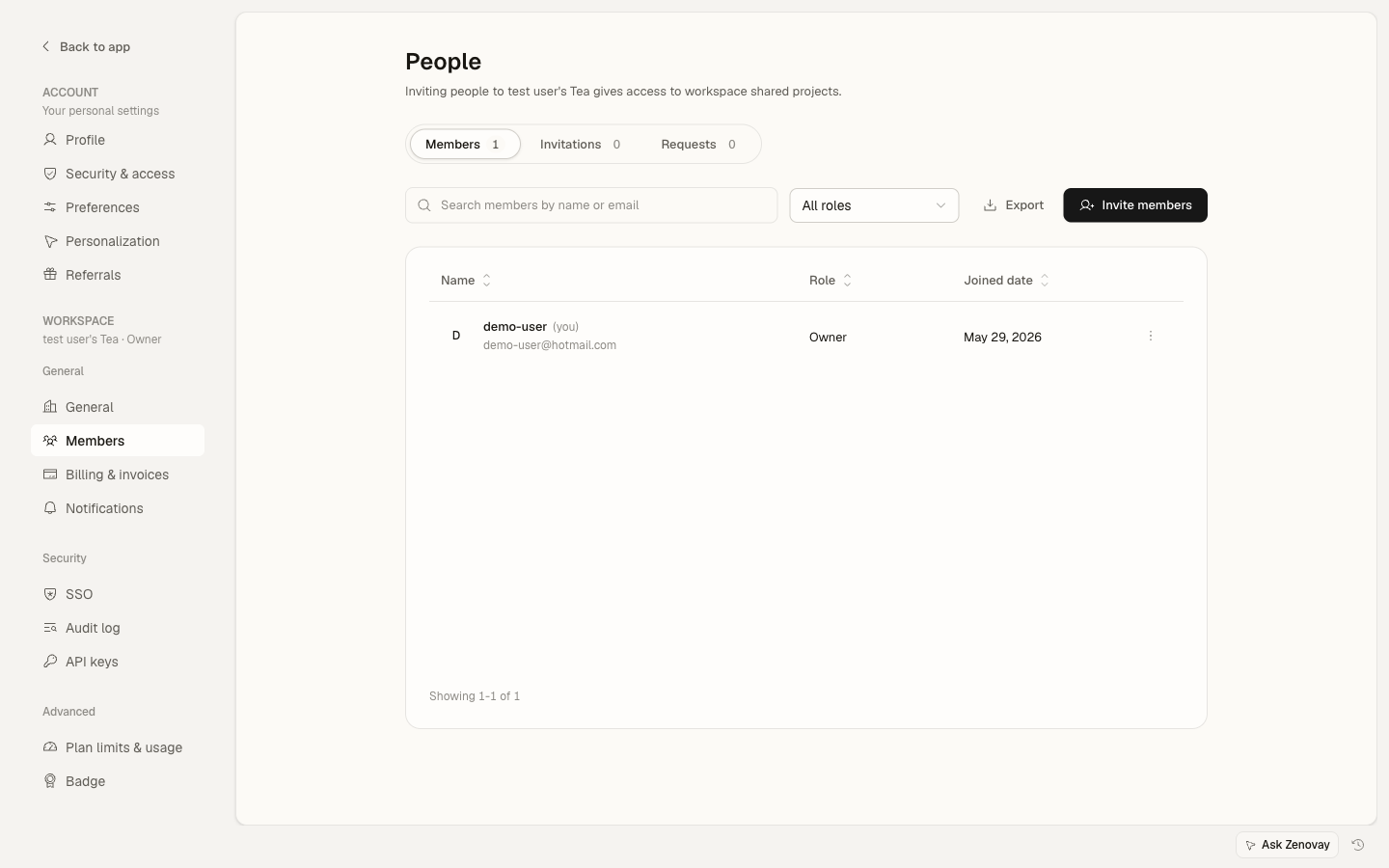
Step 1: Open Team Members
- Go to Settings → Team → Members
- Click "Invite Members"
Step 2: Enter Details
In the invite dialog:
| Field | Description |
|---|---|
| The invitee's email address. Add several at once by separating them with commas, semicolons, or new lines. | |
| Role | The permission level applied to everyone in this invite |
Step 3: Send the Invitation
- Review the email(s) and role
- Click "Invite"
- Each invitee receives an email with a link to join
Invitation Email
The invitee receives an email like this:
You've been invited to join [Team Name] on Zenovay

[Inviter] has invited you to collaborate on analytics.

Role: Editor

[View Invitation]

This invitation expires in 7 days.
Inviting Several People at Once
You don't need a separate flow for multiple invites. In the same dialog, paste several email addresses separated by commas, semicolons, or new lines, then pick a single role for the whole batch:
john@company.com
sarah@company.com
mike@company.com
Everyone in the batch is invited with the role you select. If some addresses are already members or already invited, Zenovay tells you which ones and sends the rest.
Managing Invitations
Pending invitations live under Settings → Team → Pending.
View Pending Invites
The Pending tab lists every invitation that hasn't been accepted yet, along with the email, role, and per-invite actions.
Resend Invitation
If the email didn't arrive:
- Find the invitation in the Pending list
- Click "Resend"
- A new email is sent
Revoke Invitation
To withdraw an invitation:
- Find the invitation in the Pending list
- Click "Revoke"
- Confirm. The invitation link becomes invalid.
Accepting Invitations
For New Users
If the invitee doesn't have a Zenovay account:
- Click the link in the email
- Create an account
- They join the team automatically
For Existing Users
If the invitee already has an account:
- Click the link in the email
- Sign in if needed
- Confirm joining the team
- Access is granted
Multiple Teams
Users can belong to multiple teams:
- Accept the invitation
- Switch between teams from the workspace switcher
- Keep a separate role in each team
Roles When Inviting
Available Roles
You can invite people as Viewer, Editor, or Admin. Owner is assigned when a team is created and through ownership transfer, so it isn't an option in the invite dialog.
| Role | Access Level |
|---|---|
| Viewer | Read-only access |
| Editor | Manage websites and settings, view analytics |
| Admin | Full operational access except billing and ownership |
| Owner | Complete control (assigned at team creation, not by invite) |
Admins can only invite people as Editor or Viewer. Only an Owner can invite an Admin.
Choosing a Role
| Use Case | Recommended Role |
|---|---|
| Executives | Viewer |
| Marketing team | Editor |
| IT/Technical | Admin |
| Business partner | Viewer |
Change Role Later
Roles can be changed after someone joins:
- Go to Settings → Team → Members
- Find the member
- Change their role
- Changes apply immediately
Website Access
New members get access to all of the team's websites, scoped by their role. Access is managed through the member's role rather than per-website allowlists.
Onboarding New Members
First Steps for New Members
Point new members at the basics to get oriented:
- View the team home and domain dashboards
- Explore the key reports for your sites
- Set up their notification preferences in Settings → Account → Preferences
Managing Members
View All Members
The Members tab shows your full roster with each person's email, role, and join date.
Member Actions
Available actions per member:
- Change role - Adjust their permission level
- Remove - Revoke their access to the team
Owners can also delete the team from the same page.
Troubleshooting
Invitation Not Received
If the email doesn't arrive:
- Check the spam folder
- Verify the email address
- Resend the invitation from the Pending tab
- Try a different email address
Invitation Expired
Invitations expire after 7 days. If the link no longer works:
- Revoke the old invitation
- Send a new one
Member Limit Reached
If you can't invite more people:
- Check your current member count against your plan's limit
- Remove members who no longer need access
- Upgrade your plan for more seats
Wrong Role Assigned
If a role needs changing:
- Go to Settings → Team → Members
- Change the member's role
- Changes apply immediately
Security Considerations
Before Inviting
Verify:
- The email address is correct
- The role level is appropriate
- There is a real business need for access
After Someone Leaves
When someone leaves:
- Remove them from the team promptly
- Review their past access
- Check the audit log if needed
Regular Review
Periodically audit your members:
- Remove inactive users
- Confirm roles are still appropriate
- Check access levels