Manage your payment methods to keep your subscription running without interruption. This guide covers adding, updating, and removing cards and other payment methods.
Payment methods apply to paid plans. On the Free plan there's nothing to charge, so the payment section just points you to the plans page if you decide to upgrade. Only team owners and admins can manage payment methods.
Accepted Payment Methods
Zenovay uses Stripe to process payments, so you can pay with:
| Method | Supported |
|---|---|
| Visa | Yes |
| Mastercard | Yes |
| American Express | Yes |
| Other major credit & debit cards | Yes |
| PayPal | Yes |
The exact set of methods shown at checkout can vary by region, since Stripe surfaces the options available where you are.
Enterprise Options
Enterprise PlanEnterprise accounts can arrange alternative billing (for example invoicing, wire transfer, or purchase orders) through their account manager. Reach out to discuss what works for your organization.
Viewing Payment Methods
- Go to Settings → Billing → Payment
- You'll see every saved payment method for your workspace
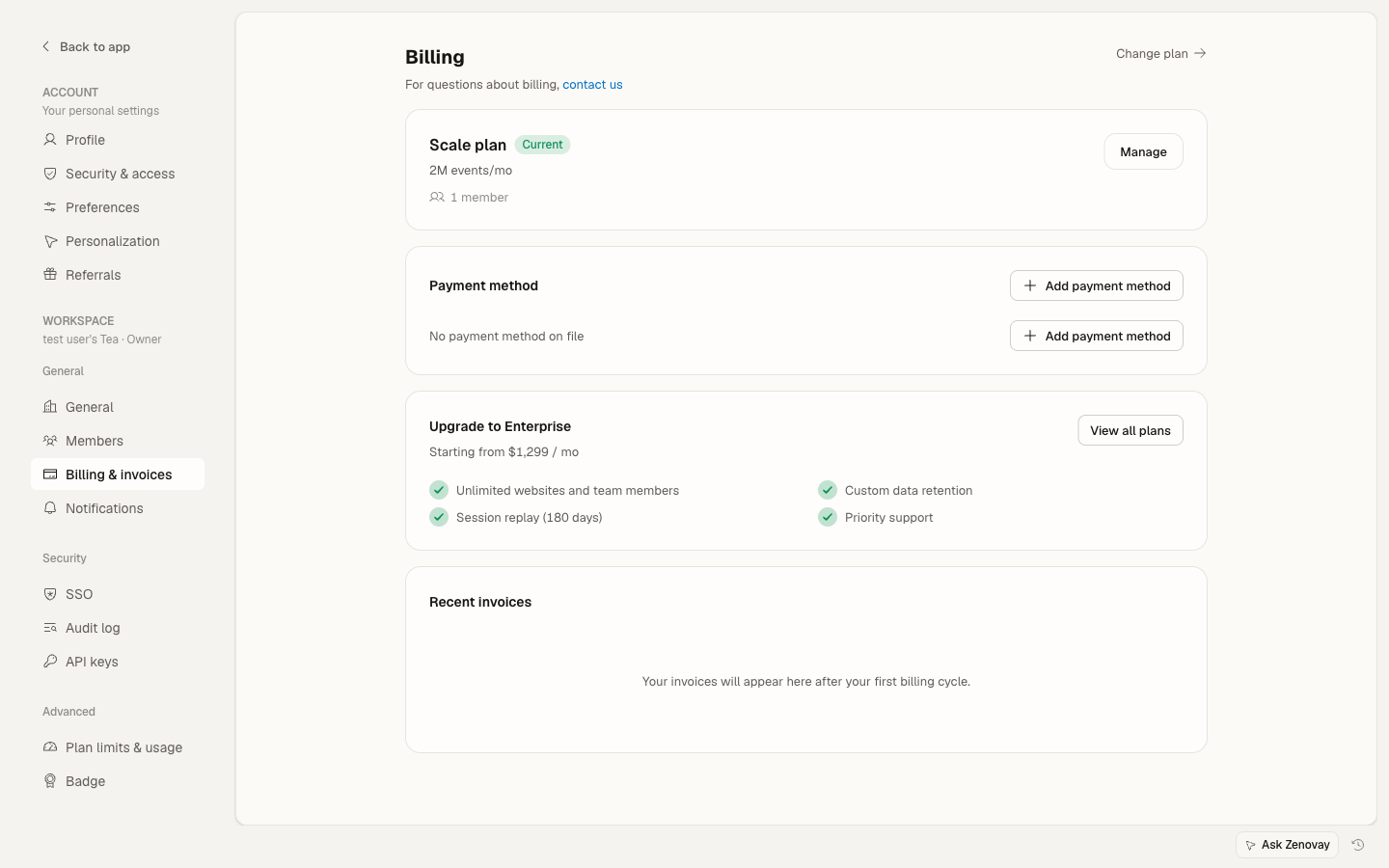
For each card you'll see:
- Card brand
- Last 4 digits
- Expiration date
- Whether it's the primary method
PayPal connections appear here too, labelled accordingly.
Adding a Payment Method
Open the Payment page
Go to Settings → Billing → Payment.
Start adding a method
Click Add Payment Method (or Add Backup Payment Method if you already have one saved).
Enter your details
A secure Stripe form opens. Choose card or PayPal and fill in your details there. Stripe handles all card entry directly.
Save
Click Save. The new method is added to your workspace.
Card entry happens inside Stripe's secure payment form, not on Zenovay's own pages, so your full card number never touches our servers.
Setting the Primary Payment Method
If you have more than one method saved, choose which one is charged:
- Go to Settings → Billing → Payment
- Find the method you want to make primary
- Click Set Primary
The primary method is used for:
- Subscription renewals
- Usage overage charges
- Upgrades
Updating a Payment Method
You can't edit a saved card's number or expiration directly. To update your card:
- On the primary method, click Update
- Enter the new card in the Stripe form
- Save
If you'd rather keep the old card until the new one is confirmed, add the new card first with Add Backup Payment Method, set it as primary, then remove the old one.
Removing a Payment Method
- Go to Settings → Billing → Payment
- Find the method you want to remove
- Click the remove (trash) icon
Keep at least one valid payment method on file while you're on a paid plan. Add a replacement before removing your only method so your subscription keeps renewing.
Card Expiration
When a Card Expires
Stripe can sometimes update an expiring card automatically when your bank issues a replacement. If it can't, add the new card yourself before the old one expires:
- Add the new card with the updated expiration
- Set it as primary
- Remove the expired card
Doing this before the next renewal avoids any interruption.
If a Payment Fails
If a charge fails because a card expired or was declined:
- You receive an email notification
- Update or add a working payment method in Settings → Billing → Payment
- Stripe automatically retries the charge on the updated method
Payment Security
Secure Processing
- All transactions use HTTPS/TLS
- Payment processing is handled by Stripe (a PCI DSS Level 1 service provider)
- Full card data is stored by Stripe, never on Zenovay servers
What We Store
- Card brand and last 4 digits (for identification)
- Expiration date
- A Stripe reference to the payment method
What We Don't Store
- Full card number
- CVV/CVC
Failed Payments
Why Payments Fail
| Reason | What to do |
|---|---|
| Insufficient funds | Ensure funds are available |
| Card expired | Add an updated card |
| Fraud prevention | Contact your bank |
| Invalid details | Re-enter your payment details |
| Card declined | Use a different method |
Handling Failed Payments
- Check your email for the failure notification
- Go to Settings → Billing → Payment
- Update or add a working payment method
- Stripe retries the charge automatically; contact support if problems persist
Multiple Payment Methods
Why Keep More Than One
- A backup if your primary method fails
- Flexibility when switching cards
Managing Multiple Methods
- Set one as primary
- Keep a backup for emergencies
- Remove methods you no longer use
- Update expiring cards promptly
Invoiced Billing
Enterprise PlanEnterprise customers can request invoiced billing:
- Contact your account manager
- Provide your billing details
- Agree on payment terms
- Receive invoices by email
Tax Information
If your business needs a tax ID (such as a VAT number) on its invoices, you can add it through Stripe's hosted billing portal. Contact support if you need help getting set up, or if your organization is tax-exempt and needs an exemption applied.
FAQ
Is my card information secure?
Yes. Stripe handles payment processing as a PCI DSS Level 1 service provider, and card entry happens inside Stripe's secure form. Your full card number never touches Zenovay's servers.
Can I use PayPal?
Yes. PayPal is available alongside cards in the payment form (availability can depend on your region).
How do I get a receipt?
Receipts are emailed after each payment, and your invoices are available under Settings → Billing → Invoices.
Can I change my billing date?
Contact support to request a billing date change.
What happens if I don't update an expired card?
Renewals will fail until a working payment method is on file. Update your payment method to get your subscription charging again.