Learn how to find and play back session recordings to understand how visitors interact with your website.
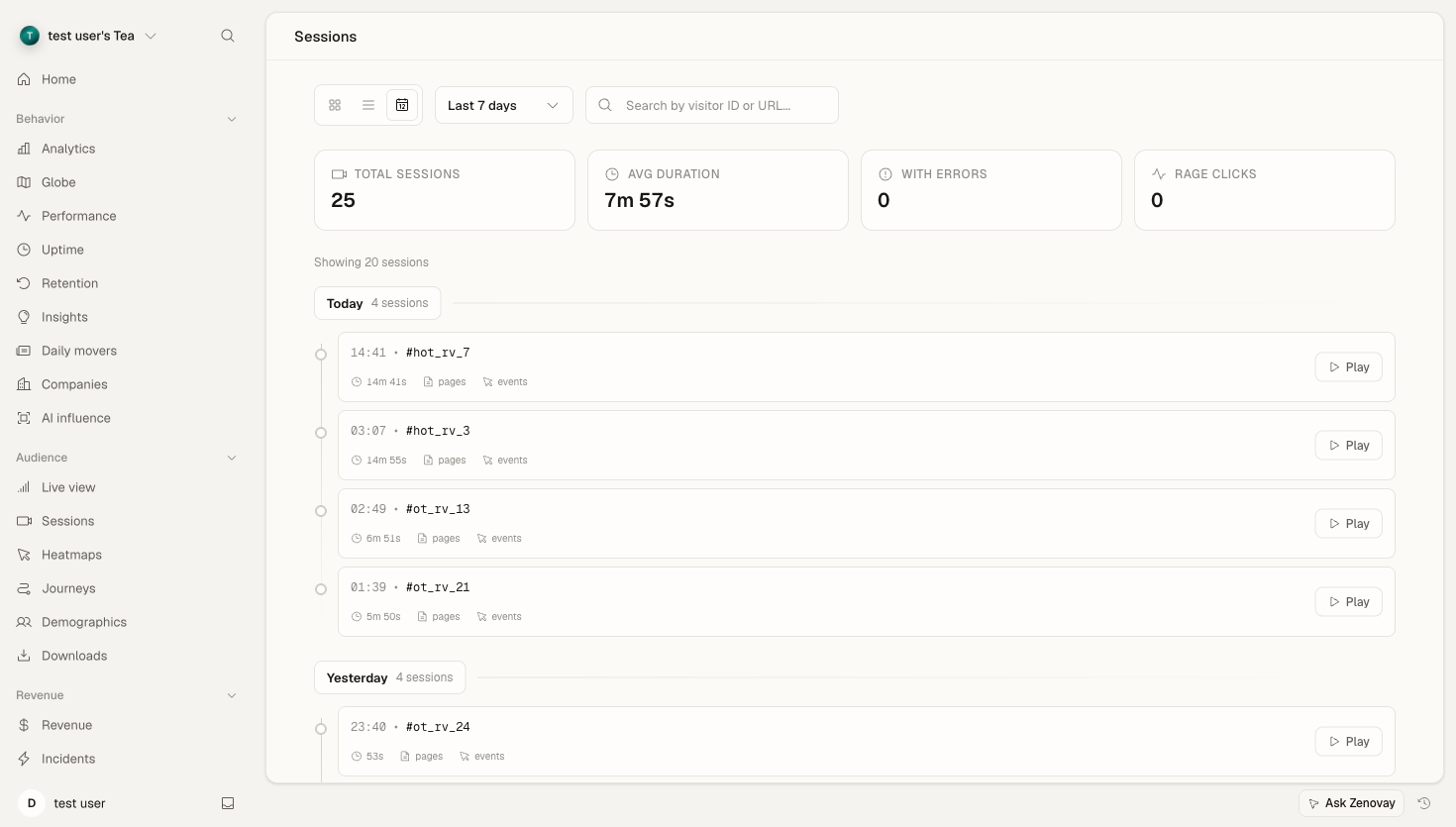
Accessing Sessions
Session replay lives on the per-website dashboard.
Open a website
Go to Domains, then open the website you want to inspect.
Select the Sessions tab
In the sidebar, under Audience, select Sessions.
Pick a recording
Browse the list and click any session to open it in the player.
There's also a standalone Sessions page at https://app.zenovay.com/sessions that opens recordings for the first website in your workspace. To switch websites, use the per-website Sessions tab above.
Info
Session replay is available on Pro plans and above. Free plans don't record sessions. See the session replay overview for how recording works.
The Session List
Each session in the list shows:
| Field | Description |
|---|---|
| Visitor | Short visitor or session identifier |
| Started | When the session began |
| Duration | Total session length |
| Pages | Number of pages viewed |
| Events | Interactions captured during the session |
| Issues | Error and frustration indicators |
View modes
A toggle at the top of the list switches between three layouts:
- Timeline (default) groups recordings by day.
- Cards shows a grid of session previews.
- Table is a compact, scrollable row view.
On phones the list defaults to the cards view.
Loading more
The list loads a page of recordings at a time. Use the Load more button at the bottom to append the next page. Changing the time range or website resets the list.
Filtering and Search
Time range
Use the period selector to narrow the recordings shown:
- Today
- Yesterday
- Last 7 days
- Last 14 days
- Last 30 days
- Last 90 days
- Last 6 months
The ranges available depend on your plan's replay retention window (see below). Ranges beyond your plan are locked and prompt an upgrade.
Search
The search box filters the loaded list by visitor identifier or page URL. Type part of a URL or a visitor ID to narrow down the recordings.
For richer, server-side filtering (by errors, frustration, device, and more), see filtering sessions.
Session Indicators
Recordings are flagged with at-a-glance badges so you can spot problem sessions quickly:
| Indicator | Meaning |
|---|---|
| Error count | JavaScript errors occurred during the session |
| Frustration | Rage clicks or other frustration signals detected |
Rage clicks
Rage clicks signal frustration: multiple rapid clicks, often on the same element. They frequently point to broken or unresponsive UI. Sessions with rage clicks are surfaced in the Issues column and counted in the stats summary at the top of the list.
Summary Stats
Above the list, a stats row summarizes the current time range:
- Total sessions
- Average duration
- Sessions with errors
- Sessions with rage clicks
These totals reflect all sessions in the selected range, not just the page currently loaded.
Playing a Session
Click any row (or the Play button) to open the recording in the player. The player shows:
- A full-screen replay of the recorded page
- Play / pause
- A timeline scrubber to jump to any point
- Playback speed (1x, 2x, 4x, 8x)
You can also deep-link to a specific moment by appending ?t= (milliseconds from the start) to the session URL. For the full player walkthrough, see the session player guide.
Info
Input values are always masked during recording, and password and payment-card fields are blocked outright, so neither appears in playback. Text your page renders is a different matter: it is recorded as shown unless you switch Mask Text Content on or mark the element with the zenovay-mask-replay or zenovay-block-replay class, or the data-private attribute. See redacting PII in recordings.
Retention
Recordings are kept for a limited window per plan. Sessions older than your plan's window are deleted and can no longer be played back.
| Plan | Replay retention |
|---|---|
| Pro | 60 days |
| Scale | 120 days |
| Enterprise | 180 days |
Best Practices
Find the most useful sessions
Focus on:
- Sessions flagged with errors
- Sessions with rage clicks
- Long sessions (deep exploration)
- Very short sessions (possible dead ends)
- Specific page flows you're investigating
Review on a routine
- Quick daily scan for new error and frustration sessions
- Weekly deep dives into specific flows
- A pass before and after each release